
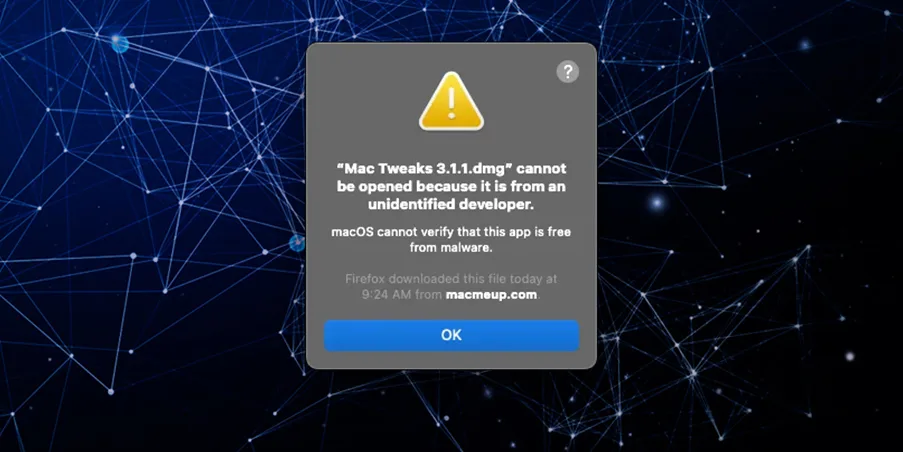
macOS includes a security feature called Gatekeeper that is designed to protect your Mac from malware by ensuring that only trusted software runs on your machine. By default, macOS only allows you to open applications downloaded from the App Store or from identified developers.
When you try to open an app, a DMG file, or a package from an unidentified developer, you might encounter a warning message saying that the app “cannot be opened because it is from an unidentified developer.”
While this is a great security measure, there are times when you need to run legitimate software from developers who haven’t registered with Apple. Here is how you can safely bypass Gatekeeper to open these files on macOS 11 (Big Sur) and newer versions (Monterey, Ventura, Sonoma, and Sequoia).

Method 1: Using the Context Menu (The Easiest Way)
The quickest way to open an app from an unidentified developer is by using the context menu in Finder. This method temporarily overrides your security settings for that specific app.
- Open Finder and locate the app or DMG file you want to open.
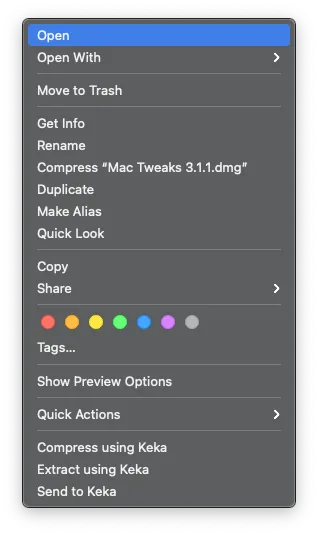
- Control-click (or right-click) the app icon.
- Select Open from the context menu.
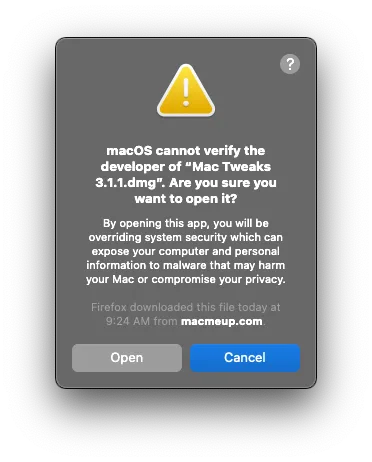
- A dialog box will appear with a warning. Click the Open button to confirm.
The app is now saved as an exception to your security settings, and you can open it normally by double-clicking it in the future.
Method 2: Through System Settings
If you’ve already tried double-clicking the app and received the blocked message, you can also allow the app through your Mac’s System Settings.
- Click the Apple menu () in the top-left corner of your screen and select System Settings (or System Preferences on macOS Monterey and Big Sur).
- Navigate to Privacy & Security (or Security & Privacy).
- Scroll down to the Security section.
- You should see a message saying that the app was blocked from opening because it is not from an identified developer.
- Click the Open Anyway button next to this message.
- You may be prompted to enter your administrator password or use Touch ID.
- Click Open in the confirmation dialog that appears.
Method 3: Disable Gatekeeper Completely (Advanced)
If you frequently install apps from unidentified developers and understand the risks, you can disable Gatekeeper completely using the Terminal. This will bring back the “Anywhere” option in your Security settings.
- Open the Terminal app (found in Applications > Utilities).
- Paste the following command and press Return:
sudo spctl --master-disable - Enter your administrator password (you won’t see the characters as you type) and press Return.
To re-enable Gatekeeper, you can use this command: sudo spctl --master-enable.