macOS includes a security feature called Gatekeeper that protects your Mac from malware by checking every app you download outside the Mac App Store. Apps must be signed by a registered developer and notarized by Apple, or macOS refuses to open them.
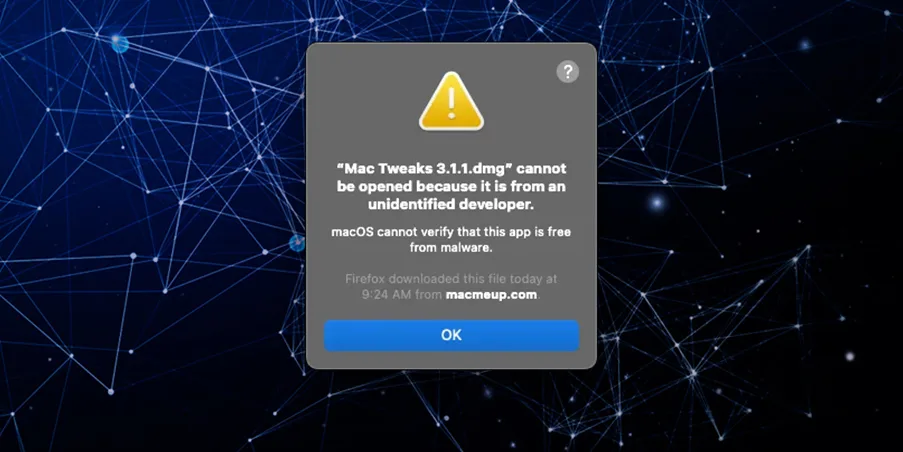
When you open an app, a DMG file or an installer package from an unidentified developer, you will see a warning that the app "cannot be opened because it is from an unidentified developer" or that macOS "could not verify" it is free of malware.
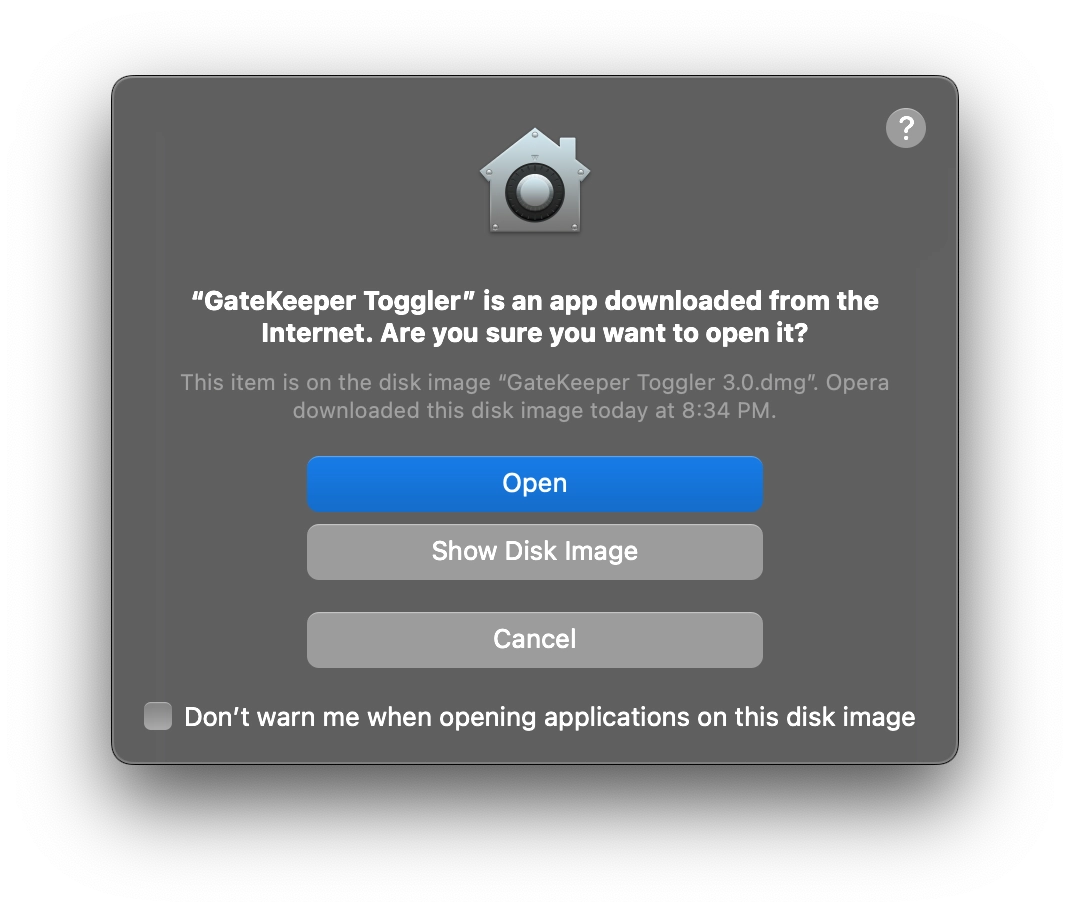
That check is a good thing, but sometimes you need to run legitimate software you trust that isn't notarized, such as open-source tools, beta builds or older utilities. The steps depend on your macOS version, because Apple changed how this works in macOS Sequoia.
Quick answer
- macOS Sequoia (15) and later: try to open the app once, then go to System Settings → Privacy & Security, click Open Anyway and confirm with your password. Control-click → Open no longer bypasses the warning.
- macOS Sonoma (14) and earlier: Control-click the app, choose Open and confirm.
Method 1: Open Anyway in System Settings (macOS Sequoia and later)
Since macOS Sequoia, this is the standard way to allow a single app. You only need to do it once per app.
- Double-click the app so macOS shows the warning, then click Done (don't move it to the Trash).
- Open the Apple menu and choose System Settings.
- Click Privacy & Security in the sidebar.
- Scroll down to the Security section. You will see a message saying the app was blocked.
- Click Open Anyway next to that message.
- Enter your administrator password or use Touch ID.
- Click Open Anyway again in the dialog that appears.
From now on the app opens normally with a double-click. The Open Anyway button only appears for about an hour after you tried to open the app, so if you don't see it, open the app again first.
Method 2: Control-click → Open (macOS Sonoma and earlier)
On macOS Big Sur, Monterey, Ventura and Sonoma you can still bypass the warning straight from Finder:
- Open Finder and find the app (usually in Applications or Downloads).
- Control-click (or right-click) the app icon.
- Choose Open from the menu.
- Click Open in the warning dialog.
The app is saved as an exception to your security settings, and you can open it normally from then on. On Monterey and Big Sur, Method 1 works too: the setting is in System Preferences → Security & Privacy → General.
Method 3: Remove the quarantine flag with Terminal
macOS marks every downloaded file with a "quarantine" flag, and that flag is what triggers Gatekeeper. If you trust the app, removing the flag lets it open without a warning:
- Move the app to your Applications folder.
- Open Terminal (Applications → Utilities).
- Type
xattr -dr com.apple.quarantine(with a space at the end), drag the app onto the Terminal window to fill in its path, and press Return. For example:
xattr -dr com.apple.quarantine /Applications/AppName.app
This affects only that one app, so it's safer than turning Gatekeeper off completely.
Method 4: Turn off Gatekeeper completely (advanced)
If you regularly run unsigned software and understand the risk, you can bring back the "Anywhere" option and stop Gatekeeper checking downloads altogether.
- Open Terminal and run:
sudo spctl --master-disable
(on newer versions this is also available assudo spctl --global-disable) - Enter your administrator password. You won't see the characters as you type.
- On macOS Sequoia and later, the command alone isn't enough: open System Settings → Privacy & Security, find Allow applications from and select Anywhere, then confirm with your password.
To turn Gatekeeper back on, run sudo spctl --master-enable or choose App Store & Known Developers again in Privacy & Security. Leaving Gatekeeper off makes it easier for malware to run, so switch it back on when you're done.
The easy way: Gatekeeper Toggler
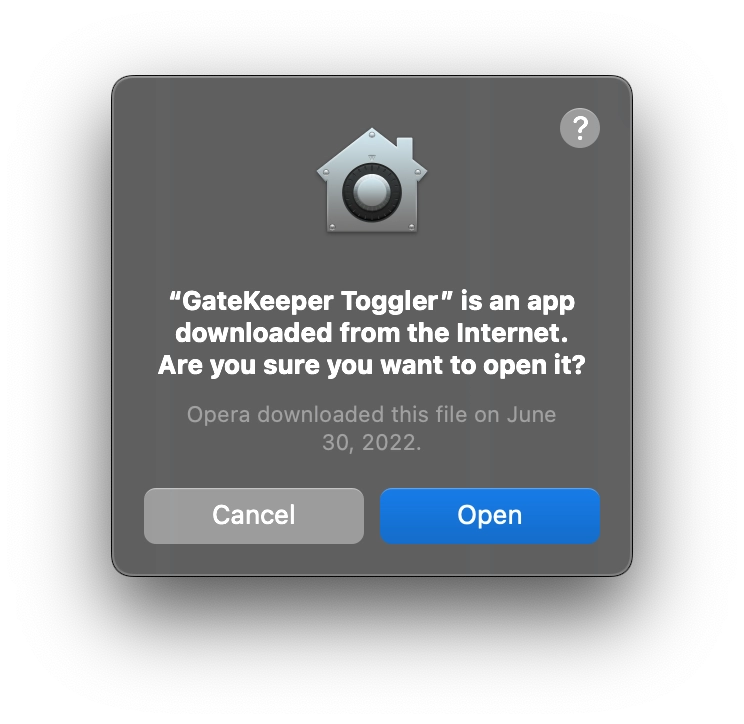
If you switch Gatekeeper on and off often, Gatekeeper Toggler, our free Mac app, does it with one switch from the menu bar and shows whether Gatekeeper is currently on. For a deeper look at the Terminal options, see How to disable Gatekeeper on macOS.
Is it safe?
Only bypass Gatekeeper for software from a source you trust, such as the developer's own website or GitHub page. Never open apps that came as unexpected email attachments or from "cracked" software sites. If macOS says an app is damaged or contains malware, delete it rather than forcing it open.