

Optimo icon
Performance & Maintenance Utility

Optimo

Mac Optimizer on steroids: clean, monitor, repair and maintain your Mac from one fast, native app.
Download Free User Guide

— downloads

macOS 11.0+ Universal Binary Free
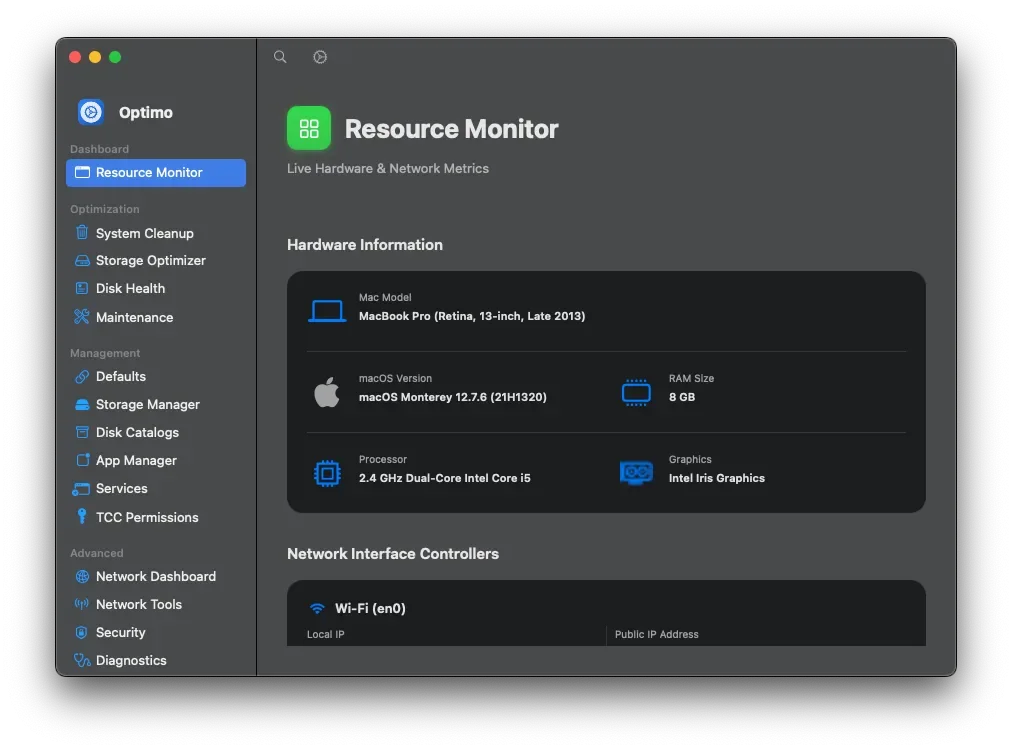
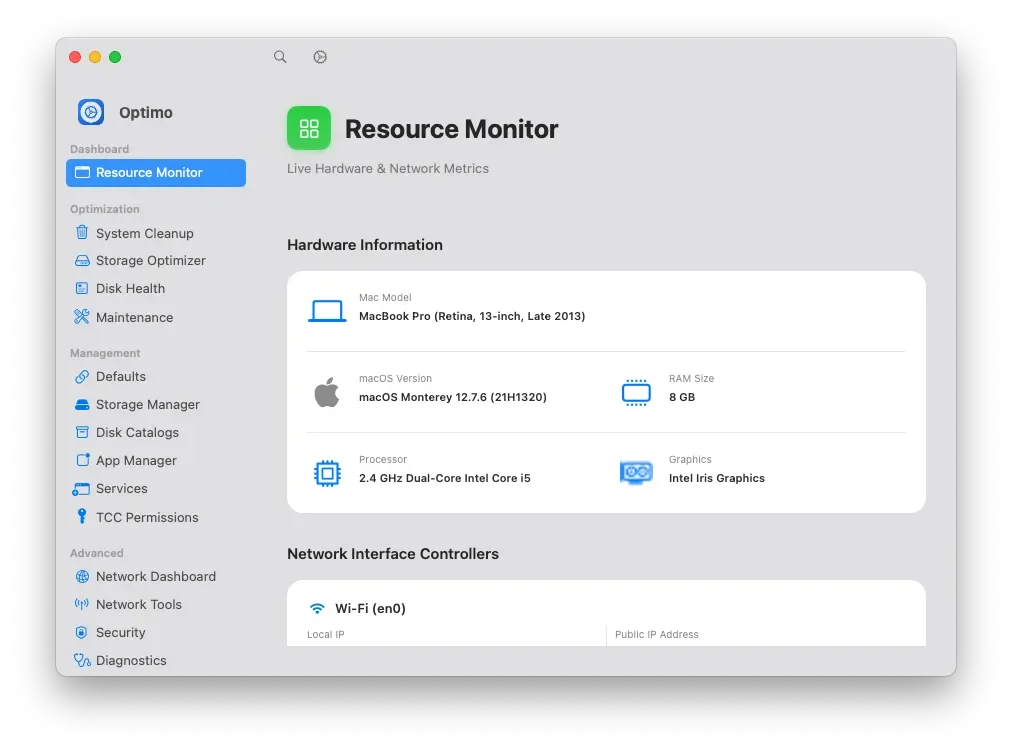
Optimo screenshot Optimo screenshot

Everything Mac Optimizer did, and a lot more

Optimo is the next generation of Mac Optimizer. It keeps the classic Mac-tech fixes and adds a full toolkit around them: a live resource monitor, a careful system cleaner, storage and disk-health tools, an app and services manager, privacy (TCC) controls, network and security diagnostics, fan and temperature readings, and dedicated tools for OpenCore and OpenCore Legacy Patcher Macs.

It is built natively in SwiftUI for macOS 11 Big Sur and later, on Intel and Apple Silicon. Nothing is ever selected for you, removed items go to the Trash wherever possible, and tasks that need an administrator password ask first.

20+
Tools in one app
macOS 11+
Big Sur to the latest
Universal
Intel & Apple Silicon
OCLP
Hackintosh & OCLP aware

Features

Your whole Mac toolkit, in one window

From one-click cleanups to deep diagnostics, Optimo replaces a drawer full of utilities.

Live Resource Monitor
CPU, memory pressure, disk and network meters, with fan speeds and temperatures.
Smart System Cleanup
Finds caches, logs and leftovers. You choose what goes, with Safe and Review badges.
Storage & Disk Health
Spot large files, browse disk usage and check drive health with S.M.A.R.T. data.
Maintenance & Repairs
The classic Mac Optimizer fixes, plus scheduled maintenance tasks in one place.
Apps, Services & Privacy
Uninstall apps cleanly, manage login items and services, and review TCC permissions.
OpenCore & OCLP Tools
Made for Hackintosh and OpenCore Legacy Patcher Macs, with dedicated status and tools.

Guide

How to get started with Optimo

  • Download Optimo with the button above, unzip it and move Optimo to your Applications folder.
  • Open it. If macOS says it is from an unidentified developer, right-click the app and choose Open (more help).
  • Give Optimo Full Disk Access in System Settings › Privacy & Security, so scans can see caches and app leftovers.
  • Start with Resource Monitor or System Cleanup, or press ⌘K to jump to any tool. The Optimo User Guide walks through every page.

Technical Details

System requirements

macOS
macOS 11 Big Sur or later
Architecture
Intel or Apple Silicon Mac
Privileges
Administrator password for some tasks
Price
Free
Optimo

Mac Optimizer,
on steroids.

Clean, monitor and maintain your Mac with one fast, native app.

Frequently Asked Questions

Got questions? We've got answers.

How is Optimo different from Mac Optimizer?
Optimo is the next generation of Mac Optimizer. It keeps the classic fixes (NVRAM reset, cache and LaunchServices rebuilds) and adds a live resource monitor, a careful system cleaner, storage and disk-health tools, an app and services manager, privacy controls, network diagnostics and OpenCore/OCLP tools.
Will Optimo delete my personal files?
Not on its own. Nothing is pre-selected: you choose every item before it is removed, results that deserve a second look are marked Review, and removed items go to the Trash wherever possible so you can put them back.
Which Macs does Optimo support?
Macs running macOS 11 Big Sur or later, on Intel or Apple Silicon, including Hackintoshes and Macs running OpenCore Legacy Patcher.
Why does Optimo ask for Full Disk Access?
So its scans can see caches, logs and app leftovers in protected folders. You grant it in System Settings › Privacy & Security › Full Disk Access, and you can remove it at any time.
Where can I learn how each tool works?
The Optimo User Guide walks through every page of the app.